
Runs on your computer
Starts with one command (npx). Nothing to install first.
Let your AI coding assistant find and add translation text for you, without leaving your code editor.
Navigation
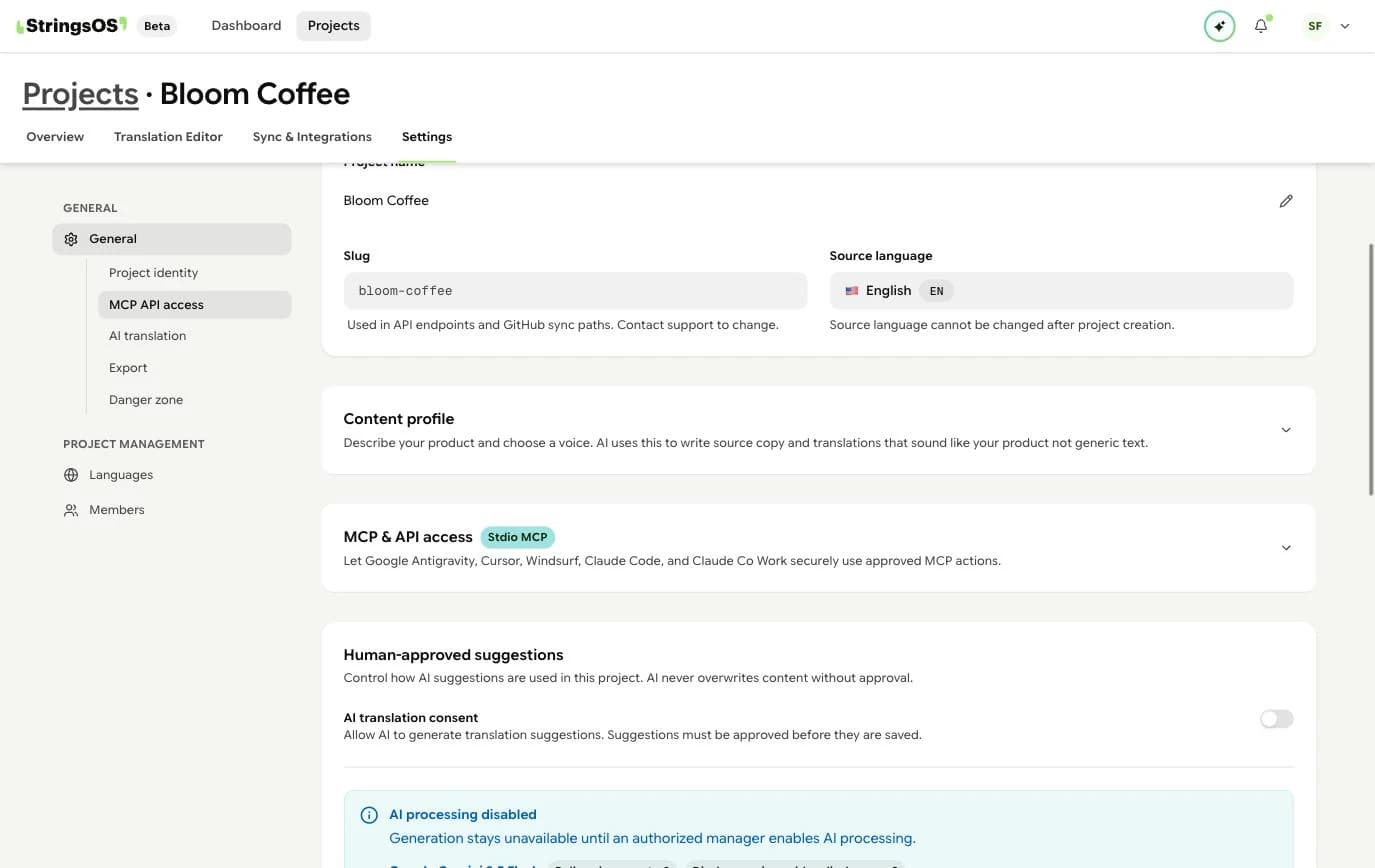
Create your access token and copy your Project ID from these settings. You’ll paste both into your tool.
Overview
MCP is a standard way for AI coding assistants to use other tools. Connect StringsOS, and your assistant can look up and add translation text while it writes code.
No more switching between your editor and StringsOS. Describe the text you need, and the assistant checks for an existing match, picks the right group, and adds it if needed.
Starts with one command (npx). Nothing to install first.
Your assistant checks for existing text first, so you don’t end up with duplicates.
Building a new screen? Your assistant adds its text to StringsOS for you, without leaving your editor.
Cursor, Windsurf, Claude Code, and any editor that supports MCP.
Setup
It takes about three minutes. Create a token, copy your Project ID, and paste a small block of settings into your tool.
Go to Workspace → Settings → API & Agents and create a Personal Access Token. Name it after your tool (for example, "cursor-laptop"), then copy it. It’s only shown once.
Treat this token like a password. Keep it out of your code and don’t share it.
Open your project, go to Settings → General, and copy the Project ID at the top of the page.
Open your tool’s settings file (see the tabs below) and paste in your Project ID and token.
The first run downloads the StringsOS connector automatically. There’s nothing to install yourself.
Restart or reload it. Most tools show a “connected” sign in their settings.
Ask your assistant: "List my StringsOS namespaces." (Namespaces are the groups your text is sorted into.) If it answers with your groups, you’re connected.
Your tool’s settings
Copy the block for your tool and replace YOUR_PROJECT_ID and YOUR_API_TOKEN with your own values. The file path is shown above each block. Create the file if it doesn’t exist.
Cursor
.cursor/mcp.json
{
  "mcpServers": {
    "stringsos": {
      "command": "npx",
      "args": [
        "-y",
        "@stringsos/mcp-server",
        "--project-id=YOUR_PROJECT_ID",
        "--token=YOUR_API_TOKEN"
      ]
    }
  }
}If your tool supports environment variables, use $STRINGSOS_TOKEN instead of pasting the token. If your code is shared with a team, add the settings file to .gitignore.
What it can do
Your assistant picks the right one on its own. You never need to type these names; they’re listed so you know what it can and can’t do.
Look up existing text by wording or group, to avoid duplicates.
Example
search_keys(query: "save changes", namespace: "common")Get the original text and all of its translations.
Example
get_key(key: "common.saveChanges")Add new text to any group.
Example
create_key(key: "settings.deleteAccount", value: "Delete account", namespace: "settings")See all the groups in your project, so the assistant can pick the right one.
Example
list_namespaces()Example
Here’s how an assistant uses StringsOS while you build a feature.
Add a "Save changes" button to the Settings page. Wire it up with i18n.
Searching StringsOS for existing keys matching "save changes"…
search_keys → 1 result: "common.saveChanges" = "Save changes"
Found an existing key. Using common.saveChanges instead of creating a duplicate. Adding the button now…
Also add a "Discard changes" link below it.
Searching StringsOS for "discard changes"…
search_keys → 0 results. Creating new key in namespace "settings"…
create_key → "settings.discardChanges" created ✓
Done. New key settings.discardChanges is live in StringsOS and wired into the component. Your translators can start on it immediately.
Your assistant handles the StringsOS busywork, so you can keep building. Translators see new text right away and can start translating.
What's next
Set it up once and stop copy-pasting text into StringsOS.
Free during beta · No credit card required