
Connect in Figma
Sign in to StringsOS from the plugin, then choose or create a project.
Send your designs to StringsOS with the Figma plugin, then bring approved translations back into the same text layers.
Navigation
Start in Figma: run the StringsOS plugin and send your designs. They then appear in StringsOS under Sync & Integrations → Design source.
How it works
The plugin sends only what you choose. Everything else happens in StringsOS.
Sign in to StringsOS from the plugin, then choose or create a project.
Send only the screens you choose. StringsOS receives their text and how it’s styled.
Match each text layer to its text in StringsOS, translate it, and review.
Preview the approved translations, then apply them to the same Figma layers.
Push
Choose screens, check how the text will be named, and send them to StringsOS.
Pull
Fetch approved translations, preview the changes, and confirm to update your Figma layers.
Setup
Start inside Figma. There’s no token or key to copy.
Send designs
Send a set of screens, match each text layer, and get the text ready to translate.
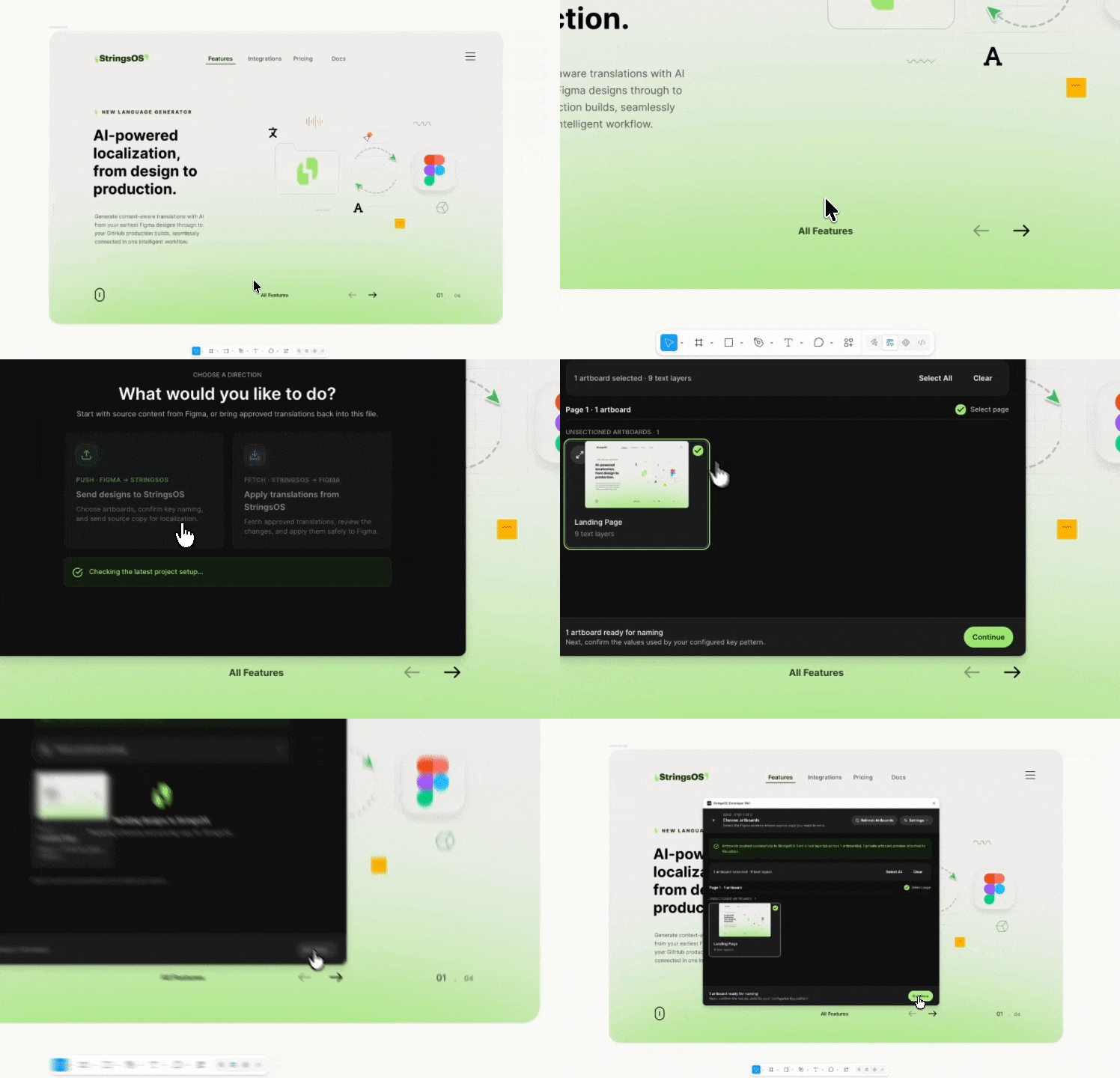
Open the plugin and select Send designs to StringsOS (Push · Figma → StringsOS). The plugin doesn’t scan your file while it’s idle.
Choose the screens (artboards) that contain text. They’re grouped by Page and Section, and only the ones you check are prepared for upload.
Review how each piece of text will be named. You can edit the Page, Section, Journey, and Artboard values. Fix any errors before continuing.
Leave previews off to send only text and design details, or turn on private previews for the screens you selected.
Select Send to StringsOS, then open the new set under Design source. For each text layer, choose whether to reuse an existing key, create a new one, or ignore it, and save.
Translate and review in StringsOS. Translations must be approved before they can be sent back to Figma.
Screens you don’t check are never read or uploaded. Preview images are optional and private. With them off, only text and design details are sent.
Bring text back
Build a plan in StringsOS, fetch it in the plugin, and update your layers only after you’ve previewed the changes.
From your matched screens, select Build push plan, choose the languages, and generate a preview. The button says “push plan”, but it prepares the update that goes back into Figma.
Compare the current and new text, and check any warnings, like text that may not fit or a placeholder that doesn’t match. Approving the plan doesn’t change Figma yet.
Open the plugin, select Apply translations from StringsOS (Fetch · StringsOS → Figma), then choose a language.
See every layer and its old → new text. Layers that aren’t safe to overwrite are marked as not writable.
Select Apply N changes. The plugin updates the layers in place and tells you which were applied, skipped, or failed.
You can fetch your original text straight away. Translations need an approved plan first. Empty text never erases a Figma layer.
Safety
StringsOS keeps the previous text and styling for every layer it updates.
You see the old and new text, and how many layers will change, before you can apply.
If a layer changed after you matched it, it’s skipped for review instead of overwritten.
Mixed fonts and text styles are preserved. If a font is missing, the layer is skipped.
After applying, select Undo this writeback, review the preview, and confirm Restore N layers.
Design source records each apply and undo, and which layers were applied, skipped, or failed.
If you retry or reconnect, nothing gets sent or recorded twice.
Troubleshooting
Start with the message shown in the plugin. These stops are designed to keep your design work safe.
Build and approve a plan for the same screens and language, then fetch again in Figma.
The design, matching, or translation changed after the plan was built. Rebuild it, review the changes, and approve it again.
The layer was edited in Figma after you matched it. Check the newer text, update the match if needed, and build a new plan.
Make the font available in Figma and try again. StringsOS skips it rather than risk breaking the styling.
Add your main language and at least one language to translate into in StringsOS, then reopen the plugin.
Reconnect the plugin with your StringsOS account, allow access in the browser, and choose the project again.
Review your text in the translation editor, then return to your screens in StringsOS to build the plan.
Connect the plugin, send a few screens, and bring your first translations back.
Free during beta · No credit card required