
Connect a repository
Install the StringsOS GitHub App, pick a repository, and tell StringsOS where your translation files live.
Connect your GitHub repository so approved translations reach your code as a pull request.
Navigation
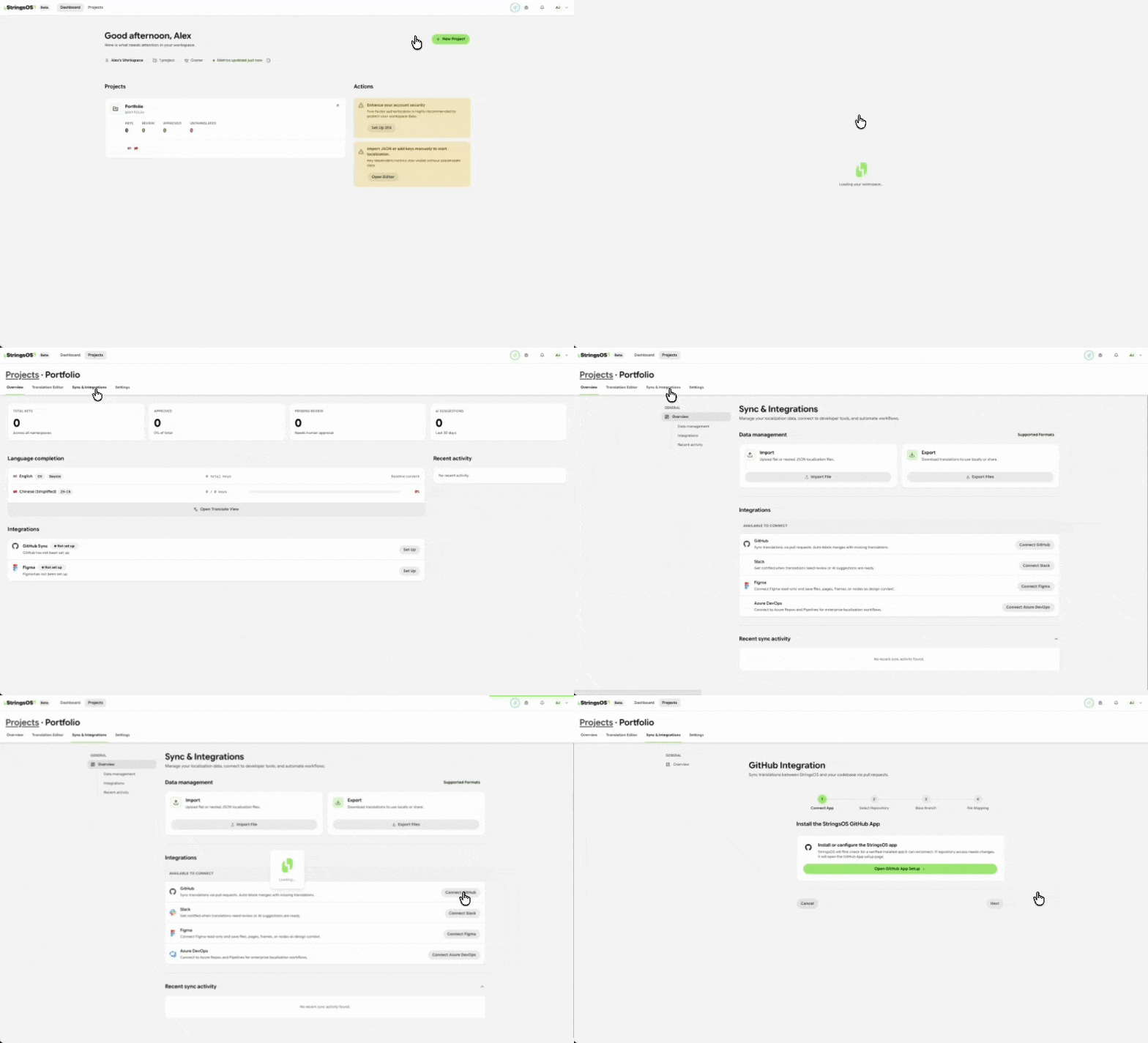
Open your project settings, then choose Integrations to connect GitHub.
How it works
Install the StringsOS GitHub App, pick a repository, and tell StringsOS where your translation files live.
When translations are approved, StringsOS opens a pull request. Developers see exactly which files change.
If a developer edits a translation file in GitHub, the change shows up in the StringsOS editor.
Every sync and commit is logged, so you can see what was sent and when.
Tell StringsOS where each language’s file lives (for example, locales/es.json). When your translations are approved, StringsOS opens a clean pull request. Your developers review the changes and merge.
Setup
Install the StringsOS GitHub App and give it access to the repository that holds your translation files. Then link your StringsOS project to that repository and enter the path of each language’s file, for example src/locales/en.json.
Publishing
Once your team has approved the translations in StringsOS, send them to your repository. StringsOS creates a branch, adds the updated files, and opens a pull request: a proposed change that your developers review before it goes live.
Use branches to work on translations without touching the live version.
Install the StringsOS GitHub App and link your first repository.
Free during beta · No credit card required